Book Classes & Coaching
Using your WellnessLiving account to book Vital Wellness classes and coaching is simple and easy. You can even save time with the WellnessLiving Achieve app!
Book Health Coaching
To book health coaching sessions online:
1. Click here. Select your service, then click "Select staff".
2. Choose your preferred staff member. If no preference, select "Any staff member"
3. Select the preferred date/time for your first appointment from the available options.
4. Sign in with your WellnessLiving email address and password*.
5. Select your payment method and click "Complete booking". Note: First-time VitalLife participants redeeming their 3 complimentary coaching sessions should select "VitalCoach Introductory Sessions" for the payment method.
6. You will be redirected to a confirmation page. Complete these steps again to book additional appointments.
*Note:If you have never made a purchase from Vital Wellness before, you will need to create a WellnessLiving account. If you have purchased products or services from Vital Wellness in the past and do not know your password, you can reset it by clicking "forgot password" and using the email address from your last transaction.
 |  Select your service, then click "Select Staff" | 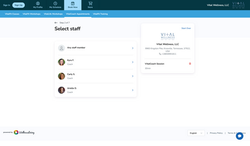 Select your preferred staff member |
|---|---|---|
 Select desired date and time | 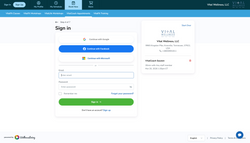 Sign in to WellnessLiving |  Select your payment method. |
 Booking is complete! Click the green button to book another service. |
Book Fitness Classes
VitalFit Circuit classes take place in person every Monday, Wednesday & Friday at 7am, 8am and 9am EST and have a capacity of 14 attendees per class. VitalFit HIIT classes take place on Tuesdays and Thursdays at 5:30pm. Reservations are optional, but recommended if the class is close to capacity.
To book your VitalFit class spot in advance:
1. Click here.
2. Navigate to the desired week and click "Book Now" next to the desired class.
3. Sign in with your WellnessLiving email address and password*
4. Check that the booking is for your name and select your payment method. Previously paid options (ex: monthly membership) that are tied to your account should appear here. If participating as part of a VitalLife Workshop package, select "VitalFit Introductory Sessions" as your payment method. Then click "Complete booking".
5. Repeat for each desired VitalFit class reservation.
*Note:If you have never made a purchase from Vital Wellness before, you will need to create a WellnessLiving account. If you have purchased products or services from Vital Wellness in the past and do not know your password, you can reset it by clicking "forgot password" and using the email address from your last transaction.
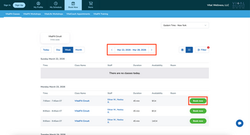 Select your desired date range and "book now" nex to desired class | Sign in to WellnessLiving |  Select payment method. |
|---|---|---|
 Booking is complete! Click the green button to book another class. |
Mobile App Bookings
All Vital Wellness services can be booked via the WellnessLiving Achieve App, downloadable via the links below.
After downloading the app to your device, log in with your WellnessLiving email address and password to get started!
How to set reoccurring bookings for fitness classes:
To save time on class bookings, members can set their VitalFit classes to re-occur on a set schedule. To do this:
1.From the homescreen, select the desired service type.
 Select the "VitalFit Classes" from the service options on the "book now" tab (bottom of the screen) |  Click "Book" next to the desired class. |  Click "One-time booking" to edit your occurrence preferences |
|---|---|---|
 Adjust the options to your preference. Then click "Select Ending Mode" to specify an end preference for the selection. |  Select end preference (never, number of occurrences, or specified date) and enter specific preference (ex: number of occurrences or specific date). Click "Save" and return to the booking process to select payment and complete the booking. |  Toggle "Repeat" to "ON" |
Booking services for family members:
Members who have a family member (spouse, sibling, etc.) associated with their profile can book services for their relationship(s) by switching between profiles. In the app, select the "More" tab, then select the desired family member's profile and click "Sign In" when prompted. This will switch the app to that person's profile and allow you select and book services on their behalf.